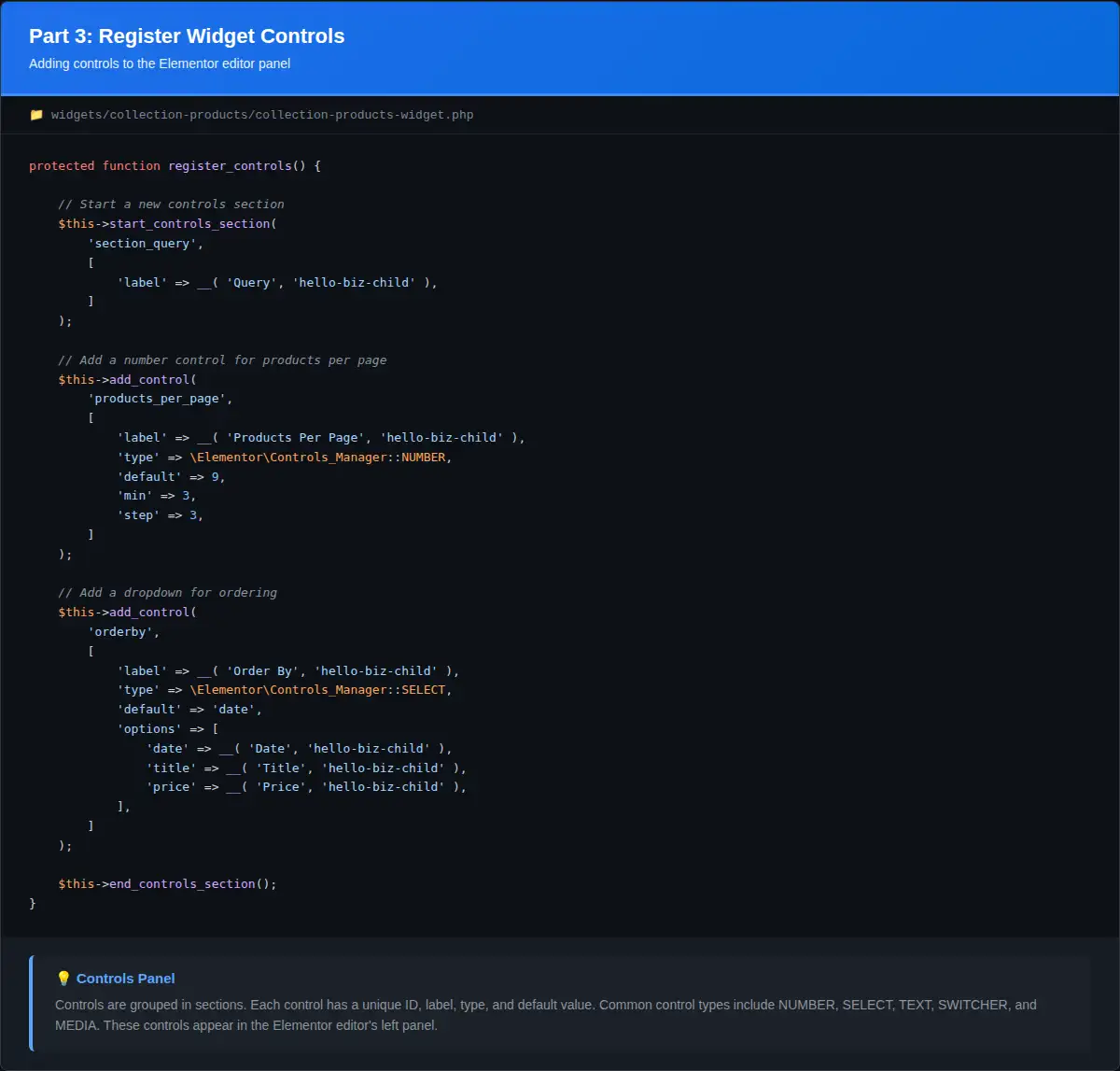
# Introduction
Now that we understand how Elementor widgets work, it’s time to build the foundation of our Collection Products widget. In this part, we’ll create the widget files, implement the required methods, add basic controls, and register the widget with Elementor.
# Learning Objectives
By the end of this tutorial, you will:
- Create the widget PHP files in the correct structure
- Implement a complete widget class with all required methods
- Register the widget with Elementor
- Add basic query controls (products per page, order, category)
- Add display controls (show/hide filters and sorting)
- Test the widget in the Elementor editor
- Understand how to organize widget files
# Step 1: Create Widget Files
We’ll create two PHP files to keep our code organized:
- collection-products-widget.php – The main widget class
- collection-products-register.php – Registration and helper functions
# 1.1 Create the Widget Class File
Create a new file at wp-content/themes/hello-biz-child/widgets/collection-products/collection-products-widget.php:
<?php
/**
 * Collection Products Widget for Elementor
 */

if ( ! defined( 'ABSPATH' ) ) {
    exit; // Exit if accessed directly.
}

class Collection_Products_Widget extends \Elementor\Widget_Base {

    /**
     * Get widget name.
     *
     * @return string Widget name.
     */
    public function get_name() {
        return 'collection_products';
    }

    /**
     * Get widget title.
     *
     * @return string Widget title.
     */
    public function get_title() {
        return __( 'Collection Products', 'hello-biz-child' );
    }

    /**
     * Get widget icon.
     *
     * @return string Widget icon.
     */
    public function get_icon() {
        return 'eicon-products';
    }

    /**
     * Get widget categories.
     *
     * @return array Widget categories.
     */
    public function get_categories() {
        return [ 'woocommerce-elements' ];
    }

    /**
     * Get widget keywords.
     *
     * @return array Widget keywords.
     */
    public function get_keywords() {
        return [ 'woocommerce', 'shop', 'store', 'products', 'collection' ];
    }

    /**
     * Register widget controls.
     */
    protected function register_controls() {
        // We'll add controls in the next steps
    }

    /**
     * Render widget output on the frontend.
     */
    protected function render() {
        echo '<div class="collection-products-wrapper">';
        echo '<p>' . __( 'Collection Products Widget - Coming Soon!', 'hello-biz-child' ) . '</p>';
        echo '</div>';
    }
}
Code Explanation:
- Security Check:
if ( ! defined( 'ABSPATH' ) )prevents direct file access - Class Declaration: Extends
\Elementor\Widget_Base - get_name(): Returns unique identifier
collection_products - get_title(): Returns display name for the widget panel
- get_icon(): Uses Elementor’s products icon
- get_categories(): Places widget in WooCommerce elements category
- get_keywords(): Helps users find the widget via search
- register_controls(): Empty for now, we’ll add controls next
- render(): Simple placeholder output
# Step 2: Create Registration File
Create wp-content/themes/hello-biz-child/widgets/collection-products/collection-products-register.php:
<?php
/**
 * Register Elementor Collection Products Widget
 */

/**
 * Register the widget with Elementor.
 *
 * @param \Elementor\Widgets_Manager $widgets_manager Elementor widgets manager.
 * @return void
 */
function register_collection_product_widget( $widgets_manager ) {
    require_once( __DIR__ . '/collection-products-widget.php' );
    $widgets_manager->register( new \Collection_Products_Widget() );
}
add_action( 'elementor/widgets/register', 'register_collection_product_widget' );
Code Explanation:
- Function:
register_collection_product_widget()handles registration - require_once: Loads the widget class file
- register(): Registers a new instance of our widget
- Hook:
elementor/widgets/registeris fired when Elementor loads widgets
# Step 3: Include Registration File in functions.php
Open wp-content/themes/hello-biz-child/functions.php and add at the bottom:
// Include collection products widget registration
require_once get_stylesheet_directory() . '/widgets/collection-products/collection-products-register.php';
Complete functions.php should now look like:
<?php
/**
 * Theme functions and definitions.
 *
 * @package HelloBizChild
 */

if ( ! defined( 'ABSPATH' ) ) {
	exit; // Exit if accessed directly.
}

define( 'HELLO_BIZ_CHILD_VERSION', '1.0.0' );

/**
 * Load child theme scripts & styles.
 *
 * @return void
 */
function hello_biz_child_scripts_styles() {

	wp_enqueue_style(
		'hello-biz-child-style',
		get_stylesheet_directory_uri() . '/style.css',
		[
			'theme',
		],
		HELLO_BIZ_CHILD_VERSION
	);
}

add_action( 'wp_enqueue_scripts', 'hello_biz_child_scripts_styles', 20 );

// Include collection products widget registration
require_once get_stylesheet_directory() . '/widgets/collection-products/collection-products-register.php';
# Step 4: Test Basic Widget
Before adding more features, let’s test that the widget loads correctly.
# 4.1 Clear Cache
- Clear any WordPress caching plugins
- Clear browser cache
- If using object caching, flush it
# 4.2 Test in Elementor
- Go to Pages → Add New
- Give the page a title (e.g., “Widget Test”)
- Click Edit with Elementor
- In the left panel, search for “Collection Products”
- Drag the widget onto the page
- You should see “Collection Products Widget – Coming Soon!”
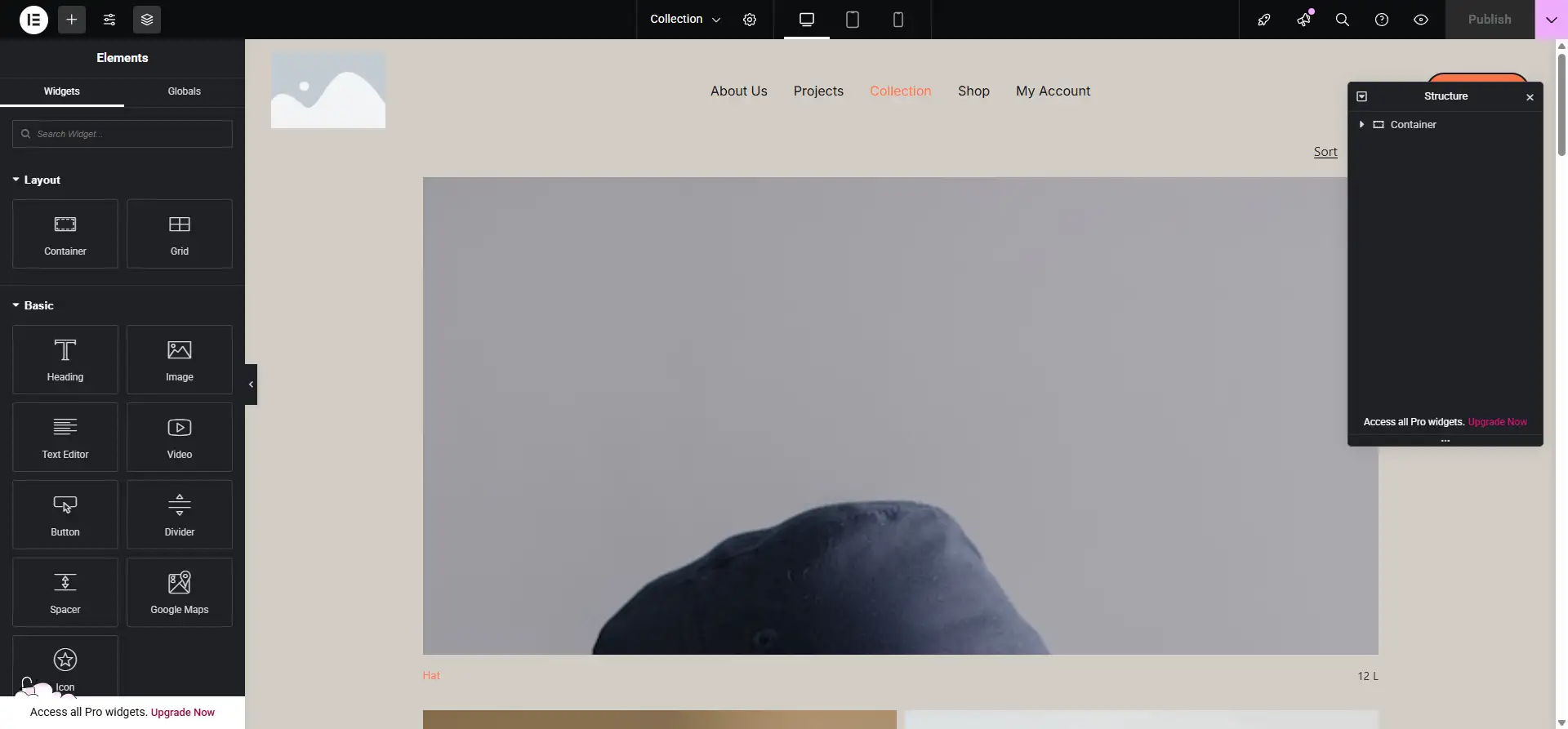
Collection Products widget in the Elementor editor
Troubleshooting:
If the widget doesn’t appear:
- Check for PHP errors (enable
WP_DEBUGin wp-config.php) - Verify file paths are correct
- Ensure WooCommerce is active
- Check that all files are saved properly
# Step 5: Add Query Controls
Now let’s add controls to configure product queries. Update the register_controls() method in collection-products-widget.php:
protected function register_controls() {

    // Query Section
    $this->start_controls_section(
        'section_query',
        [
            'label' => __( 'Query', 'hello-biz-child' ),
        ]
    );

    $this->add_control(
        'products_per_page',
        [
            'label' => __( 'Products Per Page', 'hello-biz-child' ),
            'type' => \Elementor\Controls_Manager::NUMBER,
            'default' => 9,
            'min' => 3,
            'step' => 3,
            'description' => __( 'Number of products to display', 'hello-biz-child' ),
        ]
    );

    $this->add_control(
        'orderby',
        [
            'label' => __( 'Order By', 'hello-biz-child' ),
            'type' => \Elementor\Controls_Manager::SELECT,
            'default' => 'date',
            'options' => [
                'date' => __( 'Date', 'hello-biz-child' ),
                'title' => __( 'Title', 'hello-biz-child' ),
                'price' => __( 'Price', 'hello-biz-child' ),
                'popularity' => __( 'Popularity', 'hello-biz-child' ),
                'rating' => __( 'Rating', 'hello-biz-child' ),
                'rand' => __( 'Random', 'hello-biz-child' ),
                'menu_order' => __( 'Menu Order', 'hello-biz-child' ),
            ],
        ]
    );

    $this->add_control(
        'order',
        [
            'label' => __( 'Order', 'hello-biz-child' ),
            'type' => \Elementor\Controls_Manager::SELECT,
            'default' => 'DESC',
            'options' => [
                'DESC' => __( 'Descending', 'hello-biz-child' ),
                'ASC' => __( 'Ascending', 'hello-biz-child' ),
            ],
        ]
    );

    $this->add_control(
        'category',
        [
            'label' => __( 'Category', 'hello-biz-child' ),
            'type' => \Elementor\Controls_Manager::SELECT2,
            'multiple' => true,
            'options' => $this->get_product_categories(),
            'label_block' => true,
            'description' => __( 'Select categories to filter products', 'hello-biz-child' ),
        ]
    );

    $this->add_control(
        'show_filters',
        [
            'label' => __( 'Show Filters', 'hello-biz-child' ),
            'type' => \Elementor\Controls_Manager::SWITCHER,
            'label_on' => __( 'Yes', 'hello-biz-child' ),
            'label_off' => __( 'No', 'hello-biz-child' ),
            'return_value' => 'yes',
            'default' => 'yes',
        ]
    );

    $this->add_control(
        'show_sorting',
        [
            'label' => __( 'Show Sorting', 'hello-biz-child' ),
            'type' => \Elementor\Controls_Manager::SWITCHER,
            'label_on' => __( 'Yes', 'hello-biz-child' ),
            'label_off' => __( 'No', 'hello-biz-child' ),
            'return_value' => 'yes',
            'default' => 'yes',
        ]
    );

    $this->end_controls_section();
}
Code Explanation:
- Products Per Page: Number control with default of 9, minimum 3, step of 3
- Order By: Dropdown with common sorting options
- Order: ASC or DESC
- Category: Multi-select dropdown of product categories
- Show Filters: Toggle to show/hide filter panel
- Show Sorting: Toggle to show/hide sorting dropdown
# Step 6: Add Helper Method for Categories
Add this helper method to the widget class (before or after register_controls()):
/**
 * Get product categories for control options.
 *
 * @return array Categories array.
 */
protected function get_product_categories() {
    $categories = get_terms( 'product_cat', [
        'hide_empty' => false,
    ] );

    $options = [];

    if ( ! empty( $categories ) && ! is_wp_error( $categories ) ) {
        foreach ( $categories as $category ) {
            $options[ $category->term_id ] = $category->name;
        }
    }

    return $options;
}
Code Explanation:
- get_terms(): Retrieves WooCommerce product categories
- hide_empty => false: Include categories with no products
- Returns: Array formatted for SELECT2 control
# Step 7: Add Style Controls
After the query section, add a style section:
// Style Section
$this->start_controls_section(
    'section_style',
    [
        'label' => __( 'Style', 'hello-biz-child' ),
        'tab' => \Elementor\Controls_Manager::TAB_STYLE,
    ]
);

$this->add_control(
    'gap',
    [
        'label' => __( 'Gap', 'hello-biz-child' ),
        'type' => \Elementor\Controls_Manager::SLIDER,
        'size_units' => [ 'px' ],
        'range' => [
            'px' => [
                'min' => 0,
                'max' => 50,
                'step' => 1,
            ],
        ],
        'default' => [
            'unit' => 'px',
            'size' => 10,
        ],
        'selectors' => [
            '{{WRAPPER}} .collection-products-grid' => 'gap: {{SIZE}}{{UNIT}};',
        ],
    ]
);

$this->end_controls_section();
Code Explanation:
- TAB_STYLE: Places this section in the Style tab
- SLIDER: Creates a range slider control
- selectors: Automatically applies CSS when slider changes
- {{WRAPPER}}: Replaced with unique widget selector
- {{SIZE}}{{UNIT}}: Replaced with selected value (e.g., “10px”)
# Step 8: Update Render Method
Update the render() method to display settings:
protected function render() {
    $settings = $this->get_settings_for_display();
    ?>
    <div class="collection-products-wrapper">
        <h3>Collection Products Widget</h3>
        <p><strong>Settings:</strong></p>
        <ul>
            <li>Products per page: <?php echo esc_html( $settings['products_per_page'] ); ?></li>
            <li>Order by: <?php echo esc_html( $settings['orderby'] ); ?></li>
            <li>Order: <?php echo esc_html( $settings['order'] ); ?></li>
            <li>Show filters: <?php echo esc_html( $settings['show_filters'] ); ?></li>
            <li>Show sorting: <?php echo esc_html( $settings['show_sorting'] ); ?></li>
        </ul>
    </div>
    <?php
}
This temporary render method helps us verify that settings are working correctly.
# Step 9: Test the Controls
- Refresh your Elementor editor page (or edit a new page)
- Add/re-add the Collection Products widget
- In the left panel, you should see:
- Content tab with Query section
- Style tab with Style section
- Try changing values:
- Set “Products Per Page” to 12
- Change “Order By” to “Price”
- Toggle “Show Filters” off and on
- Verify the values appear in the preview
# Complete Widget Code So Far
Here’s what your collection-products-widget.php should look like at this point:
<?php
/**
 * Collection Products Widget for Elementor
 */

if ( ! defined( 'ABSPATH' ) ) {
    exit; // Exit if accessed directly.
}

class Collection_Products_Widget extends \Elementor\Widget_Base {

    public function get_name() {
        return 'collection_products';
    }

    public function get_title() {
        return __( 'Collection Products', 'hello-biz-child' );
    }

    public function get_icon() {
        return 'eicon-products';
    }

    public function get_categories() {
        return [ 'woocommerce-elements' ];
    }

    public function get_keywords() {
        return [ 'woocommerce', 'shop', 'store', 'products', 'collection' ];
    }

    protected function register_controls() {

        $this->start_controls_section(
            'section_query',
            [
                'label' => __( 'Query', 'hello-biz-child' ),
            ]
        );

        $this->add_control(
            'products_per_page',
            [
                'label' => __( 'Products Per Page', 'hello-biz-child' ),
                'type' => \Elementor\Controls_Manager::NUMBER,
                'default' => 9,
                'min' => 3,
                'step' => 3,
            ]
        );

        $this->add_control(
            'orderby',
            [
                'label' => __( 'Order By', 'hello-biz-child' ),
                'type' => \Elementor\Controls_Manager::SELECT,
                'default' => 'date',
                'options' => [
                    'date' => __( 'Date', 'hello-biz-child' ),
                    'title' => __( 'Title', 'hello-biz-child' ),
                    'price' => __( 'Price', 'hello-biz-child' ),
                    'popularity' => __( 'Popularity', 'hello-biz-child' ),
                    'rating' => __( 'Rating', 'hello-biz-child' ),
                    'rand' => __( 'Random', 'hello-biz-child' ),
                    'menu_order' => __( 'Menu Order', 'hello-biz-child' ),
                ],
            ]
        );

        $this->add_control(
            'order',
            [
                'label' => __( 'Order', 'hello-biz-child' ),
                'type' => \Elementor\Controls_Manager::SELECT,
                'default' => 'DESC',
                'options' => [
                    'DESC' => __( 'Descending', 'hello-biz-child' ),
                    'ASC' => __( 'Ascending', 'hello-biz-child' ),
                ],
            ]
        );

        $this->add_control(
            'category',
            [
                'label' => __( 'Category', 'hello-biz-child' ),
                'type' => \Elementor\Controls_Manager::SELECT2,
                'multiple' => true,
                'options' => $this->get_product_categories(),
                'label_block' => true,
            ]
        );

        $this->add_control(
            'show_filters',
            [
                'label' => __( 'Show Filters', 'hello-biz-child' ),
                'type' => \Elementor\Controls_Manager::SWITCHER,
                'label_on' => __( 'Yes', 'hello-biz-child' ),
                'label_off' => __( 'No', 'hello-biz-child' ),
                'return_value' => 'yes',
                'default' => 'yes',
            ]
        );

        $this->add_control(
            'show_sorting',
            [
                'label' => __( 'Show Sorting', 'hello-biz-child' ),
                'type' => \Elementor\Controls_Manager::SWITCHER,
                'label_on' => __( 'Yes', 'hello-biz-child' ),
                'label_off' => __( 'No', 'hello-biz-child' ),
                'return_value' => 'yes',
                'default' => 'yes',
            ]
        );

        $this->end_controls_section();

        // Style Section
        $this->start_controls_section(
            'section_style',
            [
                'label' => __( 'Style', 'hello-biz-child' ),
                'tab' => \Elementor\Controls_Manager::TAB_STYLE,
            ]
        );

        $this->add_control(
            'gap',
            [
                'label' => __( 'Gap', 'hello-biz-child' ),
                'type' => \Elementor\Controls_Manager::SLIDER,
                'size_units' => [ 'px' ],
                'range' => [
                    'px' => [
                        'min' => 0,
                        'max' => 50,
                        'step' => 1,
                    ],
                ],
                'default' => [
                    'unit' => 'px',
                    'size' => 10,
                ],
                'selectors' => [
                    '{{WRAPPER}} .collection-products-grid' => 'gap: {{SIZE}}{{UNIT}};',
                ],
            ]
        );

        $this->end_controls_section();
    }

    protected function get_product_categories() {
        $categories = get_terms( 'product_cat', [
            'hide_empty' => false,
        ] );

        $options = [];
        foreach ( $categories as $category ) {
            $options[ $category->term_id ] = $category->name;
        }

        return $options;
    }

    protected function render() {
        $settings = $this->get_settings_for_display();
        ?>
        <div class="collection-products-wrapper">
            <h3>Collection Products Widget</h3>
            <p>Settings:</p>
            <ul>
                <li>Products per page: <?php echo esc_html( $settings['products_per_page'] ); ?></li>
                <li>Order by: <?php echo esc_html( $settings['orderby'] ); ?></li>
                <li>Order: <?php echo esc_html( $settings['order'] ); ?></li>
                <li>Show filters: <?php echo esc_html( $settings['show_filters'] ); ?></li>
                <li>Show sorting: <?php echo esc_html( $settings['show_sorting'] ); ?></li>
            </ul>
        </div>
        <?php
    }
}
# Common Issues and Solutions
# Issue 1: Widget Not Appearing in Panel
Solutions:
- Verify
get_categories()returns a valid category - Check that WooCommerce is active (required for ‘woocommerce-elements’ category)
- Clear Elementor cache: Elementor → Tools → Regenerate CSS
- Check PHP error logs
# Issue 2: Controls Not Showing
Solutions:
- Verify
register_controls()is called correctly - Check for PHP syntax errors
- Ensure
start_controls_section()is matched withend_controls_section() - Verify control IDs are unique
# Issue 3: Category Dropdown Empty
Solutions:
- Create some product categories in WooCommerce
- Check
get_product_categories()method - Verify WooCommerce is installed and active
# Issue 4: Settings Not Updating in Preview
Solutions:
- Refresh the Elementor editor
- Check browser console for JavaScript errors
- Verify
get_settings_for_display()is used inrender()
# Summary
Congratulations! You’ve built the foundation of the Collection Products widget:
- Created widget class file
- Created registration file
- Registered widget with Elementor
- Added query controls
- Added style controls
- Tested widget in Elementor editor
Your widget now appears in the Elementor panel and has a full settings interface!
# What’s Next?
In Part 4: WooCommerce Product Integration, we’ll:
- Query WooCommerce products using WP_Query
- Access and display product data
- Work with product categories and taxonomies
- Display product prices and images
- Handle product variations
- Create the initial product grid layout
Previous: ← Part 2: Understanding Elementor Widget Architecture
Next: Part 4: WooCommerce Product Integration →