# Introduction
Welcome to Part 1 of our tutorial series on building a custom Elementor WooCommerce widget! In this part, we’ll set up a complete development environment for building the Collection Products widget. Proper setup is crucial for smooth development and ensures compatibility with WordPress, WooCommerce, and Elementor.
# Learning Objectives
By the end of this tutorial, you will:
- Have a working WordPress installation
- Install and configure WooCommerce
- Install and activate Elementor
- Set up Hello Biz theme with a child theme
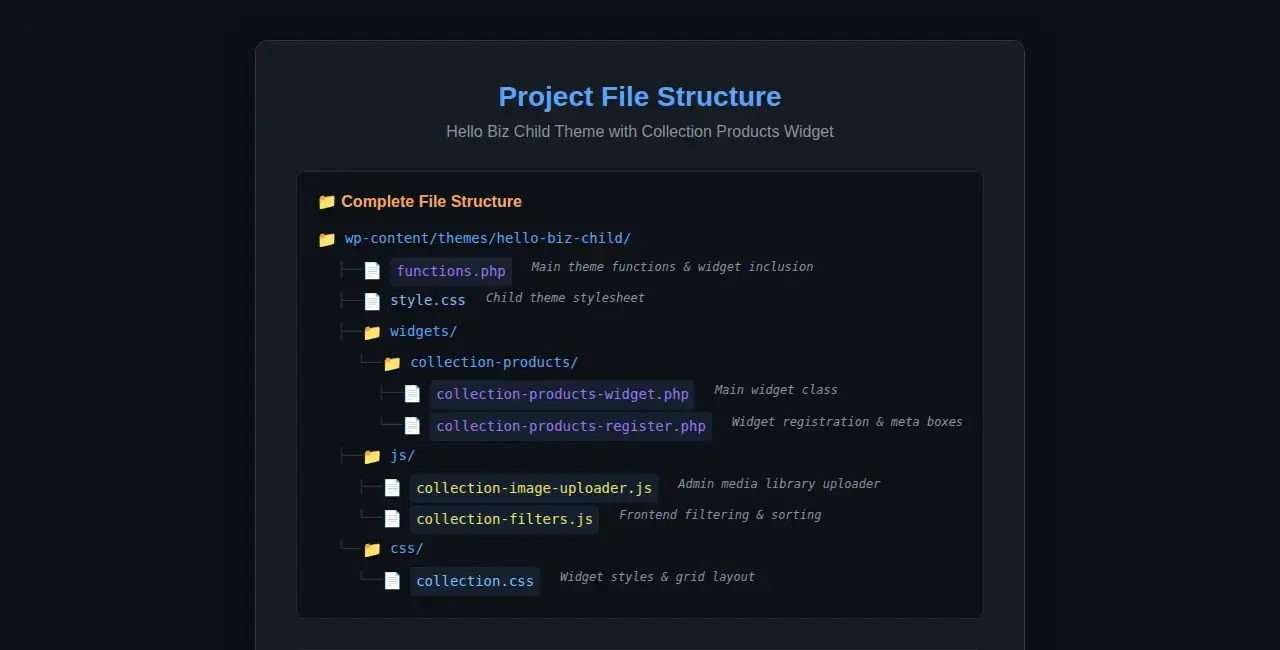
- Understand the child theme file structure
- Create the basic directory structure for the widget
# Prerequisites
- Local development environment (XAMPP, MAMP, Local by Flywheel, or similar)
- Basic understanding of WordPress installation
- Text editor or IDE (VS Code, PHPStorm, Sublime Text, etc.)
- FTP/SFTP client (optional, for remote development)
# Step 1: WordPress Installation
# 1.1 Install WordPress
If you don’t already have WordPress installed:
- Download the latest version of WordPress from wordpress.org
- Create a new MySQL database for your WordPress installation
- Extract WordPress files to your web server directory
- Navigate to your site URL in a browser
- Follow the WordPress installation wizard:
- Enter database details
- Create an admin account
- Complete the installation
# 1.2 Verify Installation
After installation:
- Log in to your WordPress admin dashboard (usually
http://yoursite.com/wp-admin) - Check that you can access the dashboard successfully
- Navigate to Settings → Permalinks and set to “Post name” (recommended)
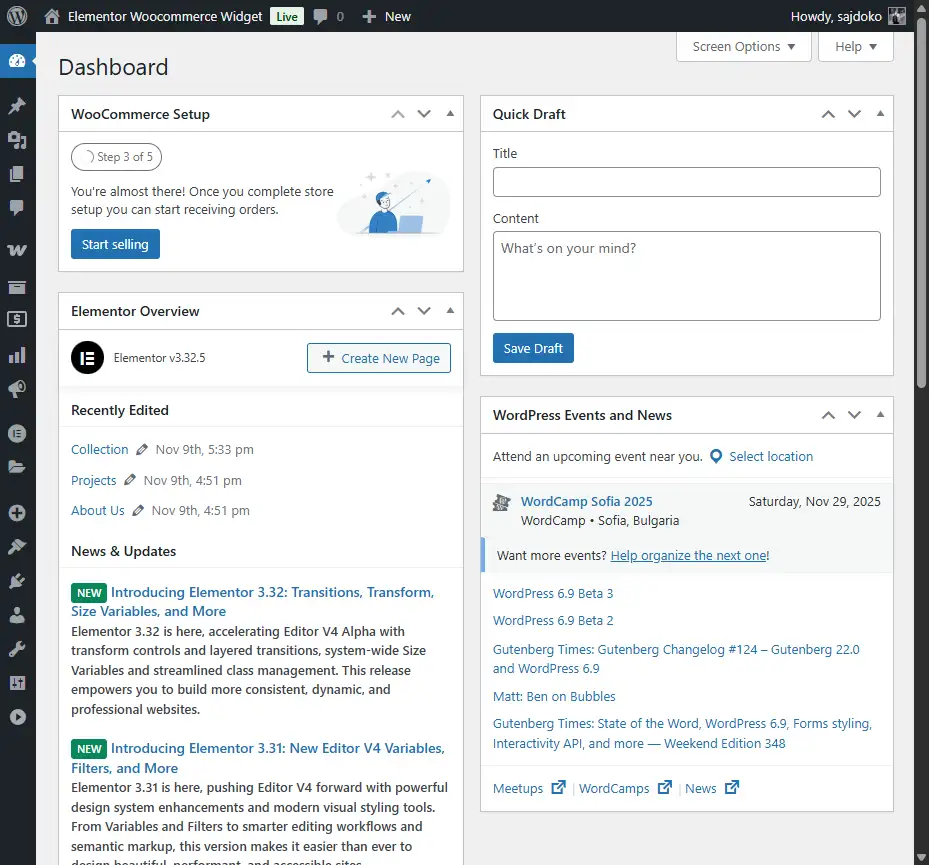
The WordPress admin dashboard after successful installation
# Step 2: Install Required Plugins
# 2.1 Install WooCommerce
WooCommerce is the e-commerce foundation for our widget.
- Go to Plugins → Add New
- Search for “WooCommerce”
- Click Install Now on the official WooCommerce plugin
- After installation, click Activate
- Follow the WooCommerce setup wizard:
- Choose your store location
- Select industry and product types
- Configure business details (you can skip this for development)
- Select a theme (we’ll install Hello Biz later)
- Complete the setup
# 2.2 Install Elementor
Elementor is the page builder we’ll extend with our custom widget.
- Go to Plugins → Add New
- Search for “Elementor”
- Click Install Now on the official Elementor plugin
- After installation, click Activate
- You may see a welcome screen – you can skip the introduction
Note: The free version of Elementor is sufficient for this tutorial. Elementor Pro is not required.
# 2.3 Verify Plugin Installation
Check that both plugins are active:
- Go to Plugins → Installed Plugins
- Verify both WooCommerce and Elementor show as “Active”
- You should see new menu items for both plugins in the admin sidebar
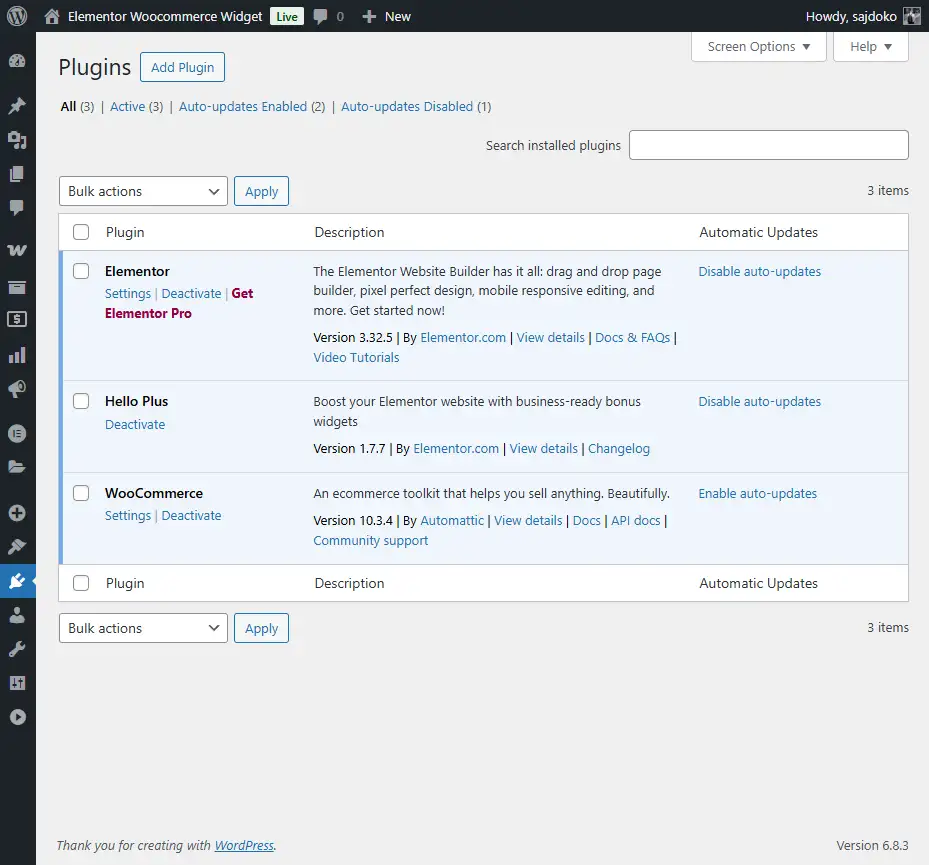
WooCommerce and Elementor plugins installed and active
# Step 3: Install Hello Biz Theme
# 3.1 Install the Parent Theme
Hello Biz is a lightweight theme optimized for Elementor.
- Go to Appearance → Themes
- Click Add New
- Search for “Hello Biz”
- Click Install on the Hello Biz theme
- After installation, click Activate
Alternative: If Hello Biz is not available in the repository, you can use “Hello Elementor” as an alternative parent theme.
# Step 4: Create a Child Theme
Creating a child theme is essential – it allows you to modify and extend the parent theme without losing changes when the parent theme updates.
We can download the Hello Biz theme from the Official Github repository: Hello Biz Child Theme, or you can create it manually.
# 4.1 Create Child Theme Directory
- Navigate to
wp-content/themes/on your WordPress installation - Create a new folder named
hello-biz-child
# 4.2 Create style.css
Create a file named style.css in the hello-biz-child folder with the following content:
/*
Theme Name: Hello Biz Child
Description: Child theme for Hello Biz with Collection Products widget
Author: Your Name
Author URI: https://yourwebsite.com
Template: hello-biz
Version: 1.0.0
License: GNU General Public License v3 or later
License URI: https://www.gnu.org/licenses/gpl-3.0.html
Text Domain: hello-biz-child
*/

/* Add your custom styles here */
Important: The Template: line must match the directory name of your parent theme exactly.
# 4.3 Create functions.php
Create a file named functions.php in the hello-biz-child folder:
/**
 * Theme functions and definitions.
 *
 * For additional information on potential customization options,
 * read the developers' documentation:
 *
 * @package HelloBizChild
 */

if ( ! defined( 'ABSPATH' ) ) {
	exit; // Exit if accessed directly.
}

define( 'HELLO_BIZ_CHILD_VERSION', '1.0.0' );

/**
 * Load child theme scripts & styles.
 *
 * @return void
 */
function hello_biz_child_scripts_styles() {

	wp_enqueue_style(
		'hello-biz-child-style',
		get_stylesheet_directory_uri() . '/style.css',
		[
			'theme', // This ensures parent theme styles load first
		],
		HELLO_BIZ_CHILD_VERSION
	);
}

add_action( 'wp_enqueue_scripts', 'hello_biz_child_scripts_styles', 20 );

// We'll add more code here in later tutorials
# 4.4 Activate Child Theme
- Go to Appearance → Themes in WordPress admin
- You should see “Hello Biz Child” theme
- Click Activate on the child theme
- Your site should now be using the child theme
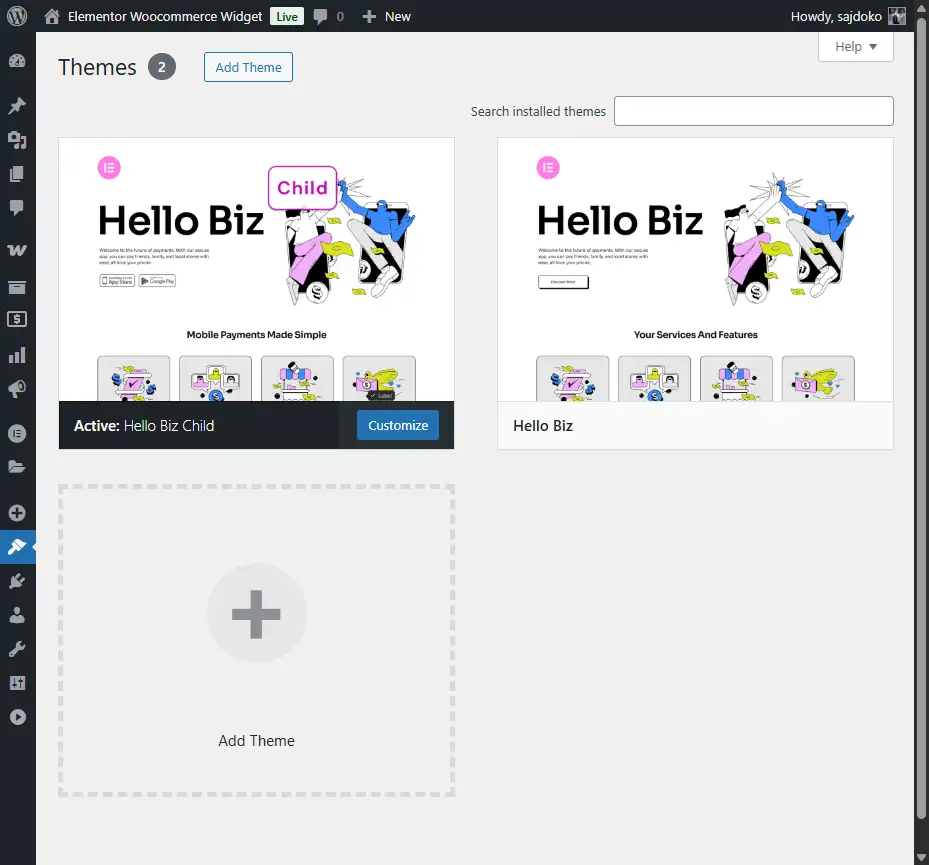
Hello Biz Child theme activated in WordPress
# Step 5: Create Widget Directory Structure
Now let’s set up the directory structure for our Collection Products widget.
# 5.1 Create Directories
In your hello-biz-child folder, create the following directories:
hello-biz-child/
├── widgets/
│   └── collection-products/
├── js/
└── css/
You can create these via FTP, File Manager, or command line:
Via Command Line:
cd wp-content/themes/hello-biz-child
mkdir -p widgets/collection-products
mkdir js
mkdir css
Via File Manager or FTP:
Simply create each folder manually.
# 5.2 Verify Directory Structure
Your child theme should now have this structure:
hello-biz-child/
├── functions.php
├── style.css
├── widgets/
│   └── collection-products/
├── js/
└── css/
# Step 6: Add Sample WooCommerce Products (Optional but Recommended)
To test our widget properly, let’s add some sample products.
# 6.1 Install WooCommerce Sample Data
- Go to WooCommerce → Status → Tools
- Click on “Create default WooCommerce pages” (if not already created)
- For sample products, you can:
- Install the “WooCommerce Sample Data” plugin, OR
- Manually create a few products
# 6.2 Create Sample Products Manually
If creating manually:
- Go to Products → Add New
- Create at least 9 products (to test the grid layout)
- For each product:
- Add a title and description
- Set a price
- Add a featured image
- Assign to a category
- Publish the product
# 6.3 Add Product Variations (for Color Swatches)
For testing color swatches:
- Create a Variable Product
- Add an attribute named “Color” (make it global attribute)
- Add color terms (e.g., “Black”, “White”, “Blue”)
- Create variations for each color
- Save the product
# Step 7: Test Your Setup
# 7.1 Verify WordPress
- Visit your site frontend
- Confirm the site loads without errors
- Check that the Hello Biz Child theme is active
# 7.2 Verify WooCommerce
- Go to Products → All Products
- Verify your sample products are listed
- Visit the Shop page on the frontend
- Confirm products display correctly
# 7.3 Verify Elementor
- Create a new page or edit an existing one
- Click “Edit with Elementor”
- Verify Elementor editor loads
- Check the widgets panel on the left
- You should see various Elementor widgets
# Common Issues and Solutions
# Issue 1: Child Theme Not Showing
Solution:
- Check that
style.csshas the correctTemplate:header matching the parent theme folder name - Verify both
style.cssandfunctions.phpexist in the child theme folder - Clear browser cache and WordPress cache
# Issue 2: Parent Theme Styles Not Loading
Solution:
- Ensure the parent theme handle in
wp_enqueue_style()is correct - Some themes use ‘theme-style’ or ‘hello-elementor’ – check your parent theme’s functions.php
- Adjust the dependency array accordingly
# Issue 3: WooCommerce Not Showing Products
Solution:
- Ensure products are published (not drafts)
- Check permalink settings (Settings → Permalinks, click Save)
- Verify WooCommerce pages were created (WooCommerce → Status)
# Issue 4: Elementor Editor Not Loading
Solution:
- Deactivate all plugins except Elementor and WooCommerce
- Switch to a default WordPress theme temporarily to isolate the issue
- Check browser console for JavaScript errors
- Clear WordPress cache and browser cache
# Testing Your Environment
To ensure everything is set up correctly, perform these checks:
# Checklist
- [ ] WordPress is installed and accessible
- [ ] You can log in to WordPress admin
- [ ] WooCommerce is active and configured
- [ ] Elementor is active
- [ ] Hello Biz parent theme is installed
- [ ] Hello Biz Child theme is active and working
- [ ] Directory structure is created (widgets/, js/, css/)
- [ ] Sample products are created in WooCommerce
- [ ] You can edit pages with Elementor
- [ ] WooCommerce shop page displays products
# Summary
Congratulations! You’ve successfully set up your development environment. You now have:
- WordPress installed and configured
- WooCommerce plugin activated with sample products
- Elementor plugin activated
- Hello Biz child theme created and activated
- Directory structure ready for widget development
# What’s Next?
In Part 2: Understanding Elementor Widget Architecture, we’ll dive deep into how Elementor widgets work. You’ll learn about the widget base class, required methods, the widget lifecycle, and how Elementor integrates widgets into the page builder.
# Additional Resources
- WordPress Child Themes Documentation
- WooCommerce Documentation
- Elementor Developers Documentation
- Local WordPress Development